Chrome DevTools has a "Show device frame" feature in its responsive design mode that wraps the viewport with artwork depicting the physical device — bezels, buttons, camera cutouts and all. The problem is that only 10 outdated devices (iPhone 5, iPhone 6/7/8, Nexus 5X, Moto G4, etc.) ship with frame art. Modern phones like the iPhone 14 Pro or Galaxy S20 Ultra show nothing when you toggle the option.
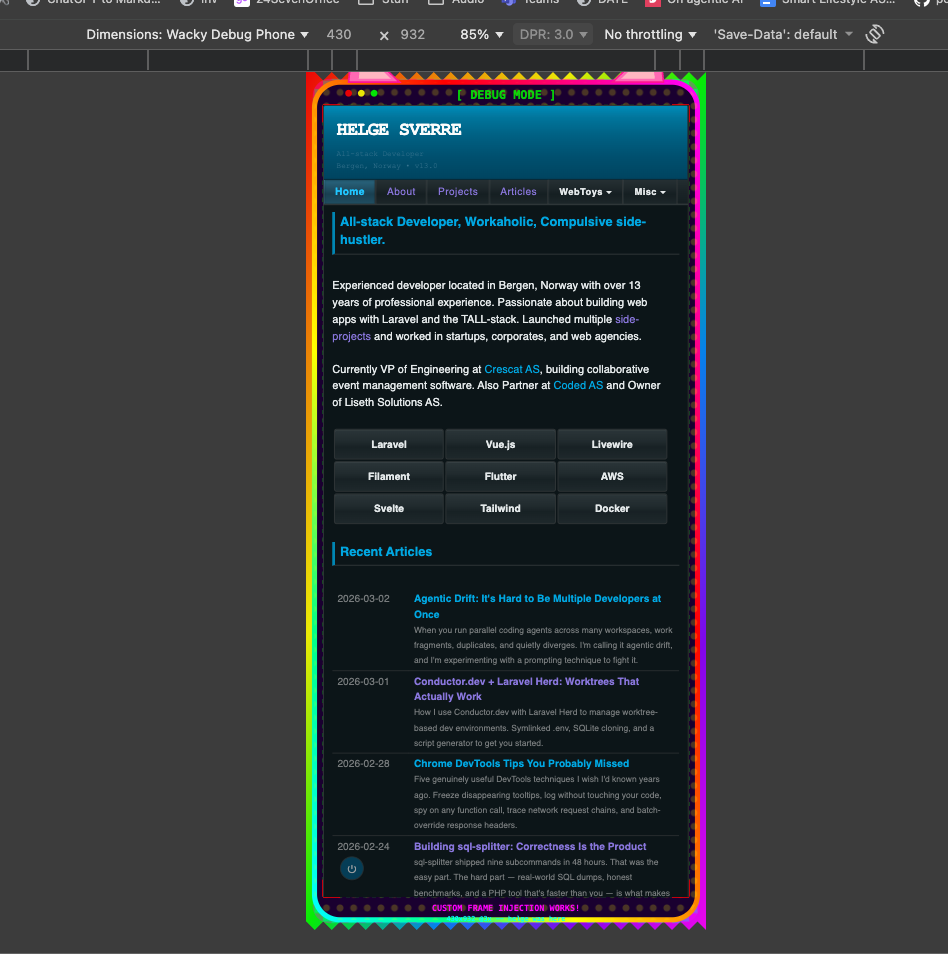
I wanted to fix this. After some research into how Chrome stores device definitions and a bit of reverse engineering, I found a way to inject custom SVG frames into Chrome DevTools without modifying the browser binary — just by editing a JSON preferences file.
How Chrome stores device frames
Device frame images are baked into Chrome's binary inside resources.pak — a DataPack v5 binary file buried in the
Chrome framework bundle. The source artwork lives in the DevTools frontend source repo under
front_end/emulated_devices/optimized/ as AVIF files compressed at quality 20.
Each device definition in Chrome's
EmulatedDevices.ts
has a screen object with vertical and horizontal orientations. The frame is defined by an outline sub-object:
{
  "outline": {
    "image": "@url(optimized/iPhone6-portrait.avif)",
    "insets": { "left": 28, "top": 105, "right": 28, "bottom": 105 }
  }
}
The image is the full device bezel artwork (the phone chassis with a black rectangle where the screen goes). The
insets define the pixel padding from each edge of the image to where the web page viewport begins. DevTools composites
the web content on top of the black screen area.
The relationship between insets and SVG dimensions is:
svg_width  = left_inset + viewport_width  + right_inset
svg_height = top_inset  + viewport_height + bottom_inset
The key insight: data URIs work
The bundled frames use @url() references that get resolved by a function called computeRelativeImageURL() in
DevTools. But crucially, this function only transforms @url() patterns — any other URI scheme passes through
untouched. This means the outline.image field happily accepts data:image/svg+xml;base64,... URIs.
This is the entire trick: you can embed SVG frame artwork directly as base64 data URIs in Chrome's Preferences JSON file. No binary modification, no code signing issues, no building DevTools from source.
Where Chrome keeps device definitions
Chrome stores device configurations in its Preferences file:
~/Library/Application Support/Google/Chrome/<Profile>/Preferences
Inside that JSON file, two keys matter:
devtools.preferences.standard-emulated-device-list— a JSON string (not object) containing an array of all built-in devices. You can addoutlineobjects to existing devices here.devtools.preferences.custom-emulated-device-list— a JSON string for user-defined custom devices. You can add entirely new devices with frames here.
Note the quirk: these values are JSON strings containing JSON. You'll need to parse the string, modify the resulting array, then serialize it back to a string.
Creating SVG device frames
A device frame SVG needs to follow a specific convention:
- Draw the device chassis — bezels, buttons, cameras, speakers, whatever the physical device looks like
- Include a black
<rect>for the screen area — this is where DevTools will composite the web page - Position the screen rect to match your insets — the rect's x/y position should equal your left/top insets
- Use 1:1 pixel mapping — SVG units should correspond directly to CSS pixels
Here's a minimal example for an iPhone 12 Pro-style frame (406x872px SVG, 390x844 viewport):
<svg width="406px" height="872px" viewBox="0 0 406 872"
     xmlns="http://www.w3.org/2000/svg">
  <!-- Device body -->
  <rect x="3" y="3" width="400" height="866" rx="28" ry="28"
        fill="#2c2c2e" stroke="#6e6e73" stroke-width="3"/>

  <!-- Screen area (DevTools composites content here) -->
  <rect fill="#000000" x="8" y="20" width="390" height="844"/>

  <!-- Screen corner masks -->
  <path d="M8,20 L8,44 Q8,20 32,20 Z" fill="#1c1c1e"/>
  <path d="M398,20 L374,20 Q398,20 398,44 Z" fill="#1c1c1e"/>
  <path d="M8,864 L8,840 Q8,864 32,864 Z" fill="#1c1c1e"/>
  <path d="M398,864 L374,864 Q398,864 398,840 Z" fill="#1c1c1e"/>
</svg>
The insets for this frame would be { "left": 8, "top": 20, "right": 8, "bottom": 8 }, calculated from:
left= screen rect x (8)top= screen rect y (20)right= svg width - x - viewport width = 406 - 8 - 390 = 8bottom= svg height - y - viewport height = 872 - 20 - 844 = 8
The injection script
Chrome overwrites its Preferences file on exit, so you can't edit it while Chrome is running. The workflow is:
- Quit Chrome gracefully (so it saves your tabs/session)
- Wait for it to fully exit
- Modify the Preferences JSON
- Reopen Chrome
Here's a Python script that does the injection:
#!/usr/bin/env python3
import json
import base64
import shutil
import sys
from pathlib import Path
from datetime import datetime

PREFS_PATH = (
    Path.home()
    / "Library/Application Support/Google/Chrome/Profile 1/Preferences"
)
FRAMES_DIR = Path(__file__).parent / "frames"

# Map device titles to frame configs
DEVICE_FRAMES = {
    "iPhone 12 Pro": {
        "vertical": {
            "svg": "iphone-12-pro-portrait.svg",
            "insets": {"left": 8, "top": 20, "right": 8, "bottom": 8},
        },
    },
    "iPhone 14 Pro Max": {
        "vertical": {
            "svg": "iphone-14-pro-max-portrait.svg",
            "insets": {"left": 8, "top": 14, "right": 8, "bottom": 14},
        },
    },
}


def svg_to_data_uri(svg_path: Path) -> str:
    svg_bytes = svg_path.read_bytes()
    b64 = base64.b64encode(svg_bytes).decode("ascii")
    return f"data:image/svg+xml;base64,{b64}"


def inject_outline(device: dict, frame_config: dict) -> bool:
    modified = False
    for orientation in ["vertical", "horizontal"]:
        if orientation not in frame_config:
            continue
        fc = frame_config[orientation]
        svg_path = FRAMES_DIR / fc["svg"]
        if not svg_path.exists():
            print(f"  WARNING: {svg_path} not found")
            continue
        data_uri = svg_to_data_uri(svg_path)
        screen = device.get("screen", {})
        if orientation not in screen:
            continue
        screen[orientation]["outline"] = {
            "image": data_uri,
            "insets": fc["insets"],
        }
        modified = True
    return modified


def main():
    dry_run = "--dry" in sys.argv

    with open(PREFS_PATH, "r") as f:
        prefs = json.load(f)

    devtools_prefs = prefs.setdefault(
        "devtools", {}
    ).setdefault("preferences", {})

    # Parse the standard device list (it's a JSON string)
    std_list_str = devtools_prefs.get(
        "standard-emulated-device-list", ""
    )
    std_list = json.loads(std_list_str)

    # Inject frames into matching devices
    for device in std_list:
        title = device.get("title", "")
        if title in DEVICE_FRAMES:
            print(f"Injecting frame for: {title}")
            inject_outline(device, DEVICE_FRAMES[title])

    # Write the modified list back as a JSON string
    devtools_prefs["standard-emulated-device-list"] = json.dumps(
        std_list
    )

    if not dry_run:
        # Backup original
        backup = PREFS_PATH.with_suffix(
            f".backup-{datetime.now().strftime('%Y%m%d-%H%M%S')}"
        )
        shutil.copy2(PREFS_PATH, backup)
        with open(PREFS_PATH, "w") as f:
            json.dump(prefs, f, separators=(",", ":"))

main()
And a shell wrapper to handle the Chrome lifecycle:
#!/bin/bash
set -e

echo "Quitting Chrome..."
osascript -e 'tell application "Google Chrome" to quit'

echo "Waiting for Chrome to exit..."
while pgrep -x "Google Chrome" > /dev/null 2>&1; do
    sleep 0.5
done
sleep 1  # safety margin for file writes to flush

echo "Injecting frames..."
python3 inject-frames.py

echo "Reopening Chrome..."
open -a "Google Chrome"
echo "Done! Your tabs will be restored automatically."
Adding a completely custom device
You can also add entirely new devices to the custom device list. The device definition includes screen dimensions, pixel ratio, user agent, and capabilities:
CUSTOM_DEVICE = {
    "title": "My Custom Phone",
    "type": "phone",
    "user-agent": "Mozilla/5.0 (Linux; Android 14) ...",
    "capabilities": ["touch", "mobile"],
    "screen": {
        "device-pixel-ratio": 3,
        "vertical": {
            "width": 430,
            "height": 932,
            "outline": {
                "image": "data:image/svg+xml;base64,...",
                "insets": {
                    "left": 20,
                    "top": 39,
                    "right": 20,
                    "bottom": 39,
                },
            },
        },
        "horizontal": {
            "width": 932,
            "height": 430,
        },
    },
    "modes": [
        {
            "title": "default",
            "orientation": "vertical",
            "insets": {"left": 0, "top": 0, "right": 0, "bottom": 0},
        },
        {
            "title": "default",
            "orientation": "horizontal",
            "insets": {"left": 0, "top": 0, "right": 0, "bottom": 0},
        },
    ],
    "show-by-default": True,
    "show": "Always",
}
To inject it, parse the custom-emulated-device-list string, append your device, and write it back:
custom_list_str = devtools_prefs.get(
    "custom-emulated-device-list", "[]"
)
custom_list = json.loads(custom_list_str)
custom_list.append(CUSTOM_DEVICE)
devtools_prefs["custom-emulated-device-list"] = json.dumps(
    custom_list
)
Using the frames in DevTools
Once you've injected frames and reopened Chrome:
- Open DevTools (
Cmd+Option+I/Ctrl+Shift+I) - Toggle the device toolbar (
Cmd+Shift+M/Ctrl+Shift+M) - Select a device from the dropdown
- Click the three-dot menu (
...) and select "Show device frame" - The custom SVG frame should appear around the viewport
Gotchas
Chrome must be fully closed before injection. The chrome://restart trick doesn't work because it saves the
in-memory preferences (wiping your edits) before restarting. Use the graceful quit approach described above.
Profile path varies. The default profile is usually Default or Profile 1. Check
~/Library/Application Support/Google/Chrome/ to find your profile directory.
Frames don't survive Chrome updates that reset preferences. Major Chrome updates occasionally reset DevTools preferences. You'll need to re-run the injection script after that happens.
Only portrait frames are needed in most cases. DevTools rarely shows landscape frames. I only create portrait SVGs and skip the horizontal orientation.
Why does Chrome still ship ancient device frames?
This has been an open issue since 2018 (Chromium bug #838829). The existing frames cover devices from 2014-2017 (iPhone 5, Nexus 5X, Moto G4). The DevTools team hasn't prioritized updating them — presumably because the frames are cosmetic and don't affect the actual device emulation. The screen dimensions, pixel ratio, and user agent are what matter for testing responsive designs.
Still, there's something satisfying about seeing your site wrapped in a realistic device frame. And now you know how to add your own.